Image to STL converter
Turn a PNG or JPG into an STL you can 3D print: a relief, an extruded logo or a lithophane. Free, no sign-up, and your image never leaves your device.
Tested and updated October 20, 2026
We tested it: three real conversions
Tested October 20, 2026 on a 2026 MacBook Pro (Apple M5 Pro) in Chrome, with the three pictures below, which we made for the test. Each figure shows the picture and the converter's 3D preview; every number comes from the STL file it produced. All five files were valid binary STL and closed meshes (every edge matched by its reverse, positive volume), so slicers read each one as a single solid. Each was ready within 0.03 s of choosing the picture, and the download itself took 15 ms or less.
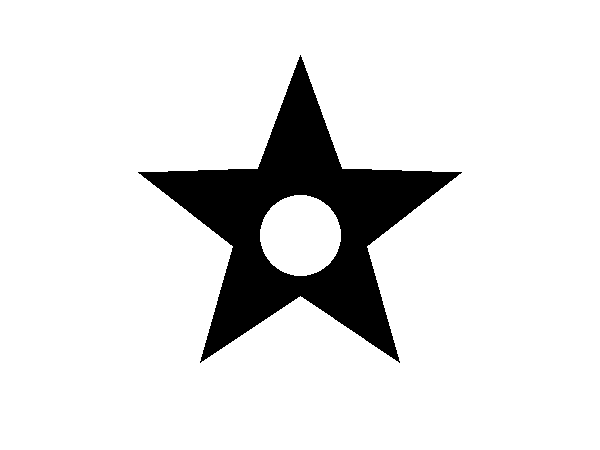

Logo, Extrude mode. A 600×450 PNG star at the default settings (100 mm width, 3 mm shape height, no base, detail 160) gave the star alone: a closed STL 52.5 × 50.6 × 3.0 mm, 9,536 triangles (0.48 MB). With a 2 mm base plate it became a 100 × 75 × 5 mm tile of 78,888 triangles (3.9 MB).
For printing: the edges step every 0.63 mm (100 mm across 160 points), fine for a keyring or a badge; raise Detail for smoother curves.
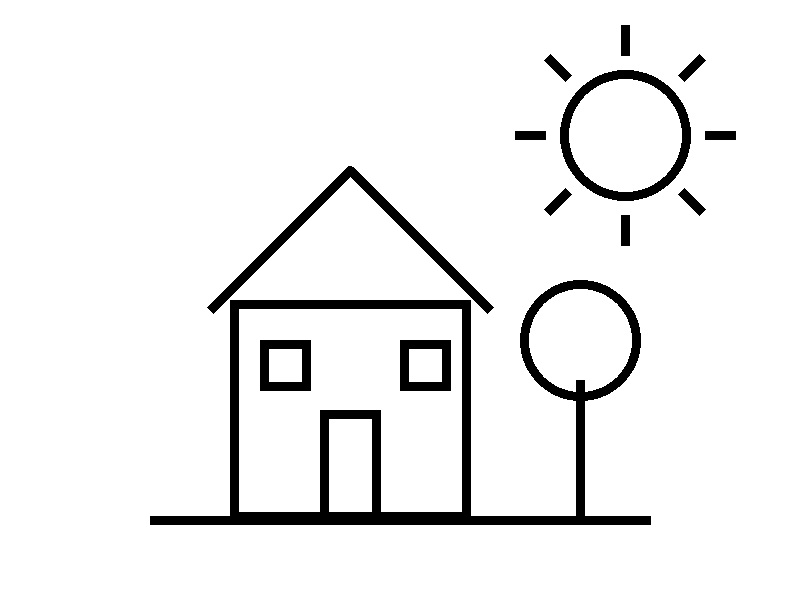
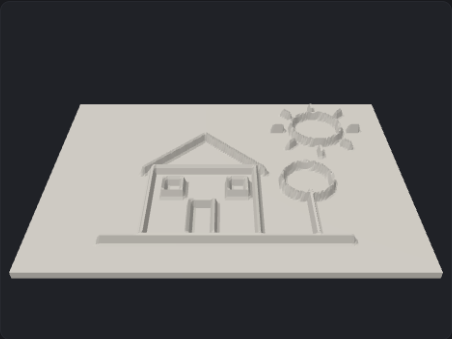
Line drawing, Relief mode. An 800×600 PNG drawing with 9-pixel lines at the default settings (100 mm width, 3 mm raised, 2 mm base, detail 160) gave a closed plaque 100 × 74.8 × 5.0 mm, 39,510 triangles (2.0 MB).
For printing: the lines come out about 1.1 mm wide, enough for a 0.4 mm nozzle; thinner pen lines need a larger width or Extrude mode.
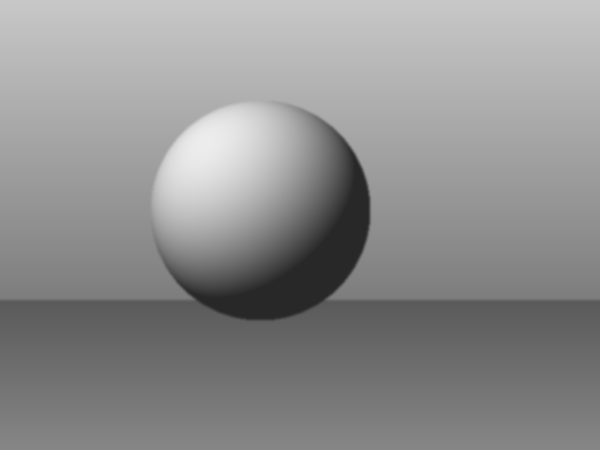
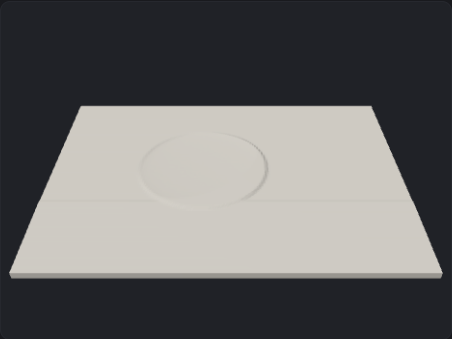
Photo-like picture, Lithophane mode. A 600×450 shaded picture at the default settings (100 mm width, 0.8 mm thinnest, up to 2.2 mm extra, detail 160) gave a closed plate 100 × 74.8 mm, 0.8 to 2.65 mm thick, 39,510 triangles (2.0 MB). At detail 300 the same plate was 137,090 triangles (6.9 MB).
For printing: the picture's darkest grey isn't black, so the plate stopped at 2.65 mm instead of 3.0; print it standing up at 100% infill and hold it to a light to see the sphere.
Want a real 3D model, not a relief?
A picture has no back or sides, so any image to STL converter can only raise it from a flat plate. To get a full 3D object from a drawing or sketch, an AI model has to build the parts you can't see.
Which mode to use
| Relief | Brightness becomes height: dark areas stand up, light areas stay low. For plaques, signs, textured tiles and photos you want to feel. |
|---|---|
| Extrude | Everything darker than the threshold is raised to one height, with straight walls. For logos, text, silhouettes and stencils. Set the base to 0 to get the shape alone. |
| Lithophane | A thin plate where dark areas are thicker. Held up to a light, the picture appears. For photos, night lights and gifts. |
How it works
The converter reads your image at the detail you choose (60 to 300 points across the long side), works out the brightness of each point, and turns it into a height. It then builds a closed mesh: the shaped top, straight side walls and a flat bottom, so slicers see one solid object. The STL is binary and in millimetres, sized to the width you set; the depth follows the image's proportions.
Everything happens in this page with JavaScript. There is no upload and no server step, which is why there's no limit and no sign-up.
Printing tips
- Lithophanes. Print standing up, not flat, so the fine detail is in the layer lines' direction. Use white or natural PLA, 100% infill, thin layers (0.1–0.12 mm) and a brim for stability. About 0.8 mm at the thinnest and 3 mm at the thickest is a common range: set the base to 0.8 and the raised height to 2.2.
- Reliefs and plaques. Print flat. A base of 2 mm or more keeps the plate from warping; smaller details need a finer nozzle.
- Logos and text. Start from a high-contrast image. Parts thinner than about two nozzle widths (0.8 mm with a 0.4 mm nozzle) may not print, so make small logos bigger.
- Detail. More detail means a bigger file and a slower slice. 120–200 is plenty for most prints under 150 mm.
- Slicer. Open the STL in a free slicer (Bambu Studio, PrusaSlicer or UltiMaker Cura) and check that the size matches what you set.
Questions
How do I convert an image to STL?
Choose the image, pick relief, extrude or lithophane, set the width in millimetres, and download the STL. Change the settings and the 3D preview updates before you download.
Can I convert a PNG or JPG to STL?
Yes. PNG, JPG and WebP all work. A PNG with a transparent background is treated as white, so only the drawn part is raised.
Is my image uploaded?
No. The STL is built in your browser from the picture on your device; nothing is sent to a server.
Can it turn a photo into a full 3D model?
No. A picture has no back or sides, so an image to STL converter makes a relief, an outline or a lithophane. For a real 3D object from a drawing or sketch, an AI model has to build the missing sides: try our sketch to 3D model tool.
How thick should a lithophane be?
A common range is about 0.8 mm at the thinnest (light areas) to about 3 mm at the thickest (dark areas), printed standing up in white filament at 100% infill.
Why does my extruded logo have rough edges?
The outline follows the grid of points the image is read at. Raise the detail, or start from a larger, sharper image.
Is the STL watertight, and how big is it?
Yes. In our tests on October 20, 2026, all five files were valid binary STL and closed meshes. Sizes ranged from 9,536 triangles (0.48 MB) for a star logo to 137,090 triangles (6.9 MB) for a lithophane at detail 300; see the tests above.
How long does converting an image to STL take?
Each STL in our tests was ready within 0.03 s of choosing the picture on a 2026 MacBook Pro in Chrome, and the download took 15 ms or less. Phones may take longer at high detail.
Is it free?
Yes, with no sign-up and no limit, because it runs on your own device.